
Welcome to We Buy Mac
Have a Mac to sell that is less than 7 years old?
What to do before you sell or trade in your Mac
Reset your Mac to factory settings preparing it for sale to We Buy Mac.
Which model do I have?
Before you begin
Check whether your Mac is covered by an AppleCare plan, you can either cancel the plan or transfer it.
If your Mac doesn’t turn on or start up properly, first learn what to do if your Mac doesn’t start up fully. Then return to this guide once your Mac is able to start up successfully.
Use Erase All Content and Settings
The Erase All Content and Settings feature makes it easier to reset your Mac to factory settings. Your Mac will have this option only if it’s using macOS Monterey 12 or later, and it’s either a Mac with Apple silicon or one with the Apple T2 Security Chip.
If your Mac supports this feature, you can use it instead of following the steps below. Learn how to use Erase All Content and Settings.
In addition, if your Mac doesn’t have this feature, follow the steps in the next section.
If you can’t use Erase All Content and Settings
If Erase All Content and Settings isn’t available on your Mac, follow these steps instead. Before starting, check which version of macOS your Mac is running.
1. Remove a device from Find My
To remove a device from Find My, go to System Settings > [Your Name] > iCloud > Find My Mac and turn it off. For a remote removal, log in to icloud.com/find, select the Mac, and click “Remove This Device”. If the device is online, you must erase it first.
Steps to Remove Mac from Find My
- From the Mac Itself (Preferred):
- Open System Settings (or System Preferences).
- Click your Name/Apple ID at the top.
- Click iCloud.
- Click Find My Mac (or “See All” then Find My Mac) and select Turn Off.
- Remotely via iCloud (If you don’t have the device):
- Sign in to icloud.com/find on a browser.
- Select the Mac from the “All Devices” list.
- If the device is online, click “Erase” first to initiate the process.
- Click “Remove from Account” or “Remove This Device”.
2. Back up or transfer your files
If you don’t already have a recent backup, back up your files to an external storage device or transfer them to your new Mac.
3. Sign out of iTunes
If you’re using macOS Catalina 10.15 or later, you can skip this step.
From the menu bar in iTunes, choose Account > Authorisations > Deauthorise This Computer.
Enter your Apple ID details and click Deauthorise. Learn more about deauthorising your computer.
4. Sign out of iCloud
When you sign out of iCloud, you’ll be asked whether to keep a copy of your iCloud data on this Mac. It’s faster to keep a copy, as you’ll erase your Mac later anyway. Learn more about signing out of iCloud.
macOS Ventura 13 or later:
- Choose Apple menu > System Settings.
- Click your name in the sidebar.
- On the right, scroll down and click Sign Out.
macOS Monterey 12, Big Sur 11, or Catalina 10.15:
- Choose Apple menu > System Preferences.
- Click Apple ID.
- Select Overview in the sidebar.
- Click Sign Out.
Earlier versions of macOS:
- Choose Apple menu > System Preferences.
- Click iCloud.
- Click Sign Out.
5. Sign out of iMessage
- Open the Messages app.
- From the menu bar, choose Messages > Settings (or Preferences).
- Click iMessage.
- Click Sign Out.
6. Unpair Bluetooth devices (optional)
Important: If you do this on a Mac without a built-in keyboard or trackpad, you’ll need to connect a USB keyboard and mouse to complete the following steps.
If your Mac has been paired with a Bluetooth keyboard, mouse or other device that you intend to keep, you can unpair it. This helps prevent accidental input if the Mac and device remain within Bluetooth range but have different owners.
- Choose Apple menu > System Settings (or System Preferences).
- Click Bluetooth.
- Hover your pointer over the device you want to unpair, then click the Disconnect or Remove (x) button next to its name.
7. Erase your Mac and reinstall macOS
- Start up from macOS Recovery.
- Use Disk Utility in Recovery to erase your Mac.
- Reinstall macOS from Recovery.
After reinstalling macOS, your Mac will restart and display the setup assistant. Press Command–Q to shut down instead of continuing with the setup process.
8. Reset NVRAM
If you’re using an Intel-based Mac, resetting the NVRAM clears user settings from memory and restores certain security features that may have been changed. Learn how to reset NVRAM.
After resetting NVRAM, your Mac will start up to the setup assistant again. To leave it in an out-of-box state, press Command–Q to shut down rather than continuing setup.
Trade in or recycle your Mac
Once your Mac has been removed from Find My, erased and reset, you can trade it in or sell it to our friendly team of Apple purchasing experts:
Click the button below and get your free evaluation right now
Have a Mac to sell? We have a streamlined process in place to ensure that your Mac is sold quickly and efficiently, saving you both time and effort.
We Buy Mac pride ourselves on offering the most competitive prices for your used Apple device.

Are you searching to Sell My Mac?
Areas covered by our Apple buyers :
- Islington N1
- East Finchley N2
- Finchley N3
- Finsbury Park N4
- Highbury N5
- Highgate N6
- Holloway N7
- Crouch End N8
- Hornsey & Turnpike Lane N8
- Edmonton N9
- Muswell Hill N10
- Bounds Green N11
- North Finchley N12
- Palmers Green N13
- Southgate N14
- Tottenham Hale N15
- Stamford Hill N16
- Stoke Newington N16
- Tottenham N17
- Edmonton Green N18
- Archway N19
- Whetstone N20
- Winchmore Hill N21
- Wood Green N22
- Enfield Town EN1
- Enfield Lock EN3
- Barnet EN4
- New Barnet EN5
- Cockfosters EN5
- Potters Bar EN5
- Euston NW1
- Camden Town NW1
- Camden Lock NW1
- Cricklewood NW2
- Hampstead NW3
- Hendon NW4
- Brent Cross NW4
- Kentish Town NW5
- West Hampstead NW6
- Mill Hill NW7
- St Johns Wood NW8
- Colindale NW9
- Harlesden NW10
- Neasden NW10
- Golders Green NW11
- Hampstead Gdn Suburb NW11
- Ealing W5
- Wembley HA0
- Kings Cross N1C
- St Pancras N1
- Oxford Circus W1B
- Marble Arch W1H
- Shoreditch E1
- Bethnal Green E2
- Bow E3
- Chingford E4
- Hackney E5
- East Ham E6
- Newham E7
- Dalston E8
- Homerton E9
- Leyton E10
- Leytonstone E11
- Manor Park E12
- Plaistow E13
- Canary Wharf E14
- Stratford E15
- London City Airport E16
- Walthamstow E17
- Woodford E18
- Olympic Park E20
- Sell my Mac: Areas Covered
Got a burning question for London’s Leading Tech Buyers?
Check our Frequently Asked Questions (FAQ)
@webuymac @webuymaclondon @we-buy-mac #webuymac #webuymaclondon #sellmymac #sellyourmac #sellmymac #webuyanymaclondon #webuymacuk #applemacbuyers #appletechbuyers #buymymac #sellmypc #sellmylaptop #sellmytech #pctechbuyers #sellmyiphone #sellmyipad #sellmymacbook #sellmymacbookpro #sellmymacbookair #sellmymacbookneo #sellmymacbookm1 #sellmymacbookm2 #sellmymacbookm3 #sellmymacbookm4 #sellmymacbookm5 #webuyipad #webuyiphone #cashformac #cashforapple #cashfortech #cashforlaptop #laptopcashbuyers #macbookcashbuyers #imaccashbuyers
BUY SELL APPLE MAC NORTH LONDON / REFURBISHED APPLE STORE LONDON / REFURBISHED MAC STORE / REFURBISHED APPLE SHOP NORTH LONDON / Linktree / c8ke / AboutMe / Cylex
We’ll pay you cash for your Mac. Easy peasy!
How it works:
- Please send us the model, specs & condition.
- Rub your hands at the generous quote we offer
- Drop off or send your Mac to us for testing
- Kick back & get ready for payment

SELL YOUR MAC TODAY
Planning to sell your Mac? Sell it now!
Have a Mac to sell that is less than 7 years old? Not only do we offer competitive prices, but we also offer a hassle-free and convenient selling experience. Our process is simple and straightforward.
Send the details of your device, and receive an instant quote. If you’re happy with the offer, ship your device to us via a courier of your choice. Once we receive your device and verify its condition, we’ll promptly send you payment.
By choosing to sell your used Apple products to us, you can not only earn some extra cash but also contribute to the environmentally friendly practice of recycling and reusing electronics.
So why let your old Apple devices collect dust when you can turn them into cash?
Visit We Buy Mac today and get a quote for your used Apple products!
Have a Mac to sell?
IT Managers:
Are you upgrading your Mac estate?
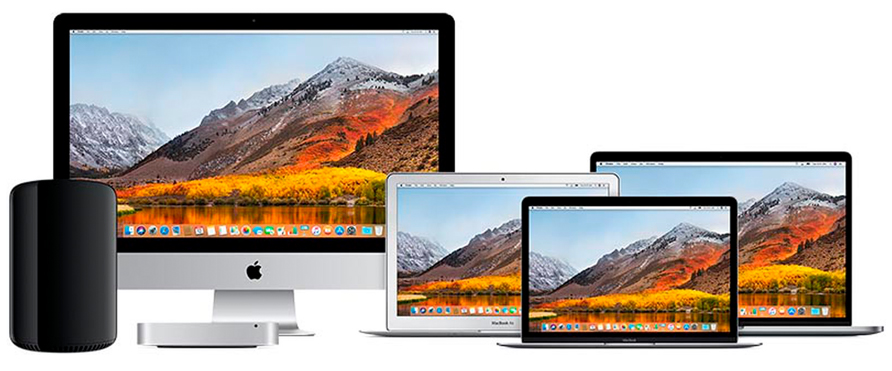
We buy any quantity of pre-loved Apple computers under 7 years old
Do you have multiple Macs for sale? We’ll buy the lot… Today!
We Can Beat Any Offer • Fuss-Free Service
We’re here to cater to your needs and make selling your Mac a breeze! We understand that selling your Mac can be a daunting task, but worry not, as our team of experts is ready to assist you every step of the way.
Whether you have a question about the selling process, need help determining the best price for your device, or simply want some advice on how to prepare your Mac for sale, we’ve got you covered.
Don’t let your Mac gather dust when you can turn it into cash.
You can reach out to us via phone, email, or visit our store any day of the week. Our friendly staff will be more than happy to answer all your queries and provide you with the guidance you need. We have years of experience in the industry, ensuring that you receive the highest level of service and get the best possible value for your Mac.
In addition to our knowledgeable team, we also offer a hassle-free selling experience. Once you’ve connected with us, we’ll take care of all the necessary paperwork, inspections, and negotiations on your behalf.
Reach out to us today and let us help you sell your Mac with ease.
We only buy devices that are less than 7 years old
Free up your finances – Sell your Mac today
Free up finances by repurposing the unused device instead of allowing it to depreciate and go to waste.
Looking to buy a refurbished Mac?
We have a hand-picked selection of used & refurbished iMac, MacBook Pro & MacBook Air models.
Get in touch today & we’ll discuss your personal requirements.


